

Popup rules are triggered the same as normal rules; the difference is that these rules present customers with a selection of related products they can choose to add to their cart, instead of automatically adding one. This works particularly well if you want to offer customers a gift like a T-shirt where they need to choose a size, or give them the ability to choose between a red and a blue T-shirt.
See this rule in action on our demo store here: https://easygiftdemo.myshopify.com/products/chronograph-i
Password for demo store: 506
Are you interested in setting up a rule like this? Follow these steps to create your own:
Step 1: Create a new EG rule
Open the EG app from the Shopify admin page.
Create a new rule and name it appropriately.
Set the rule trigger you want to use.
Step 2: Configure the products you want to upsell in the rule action
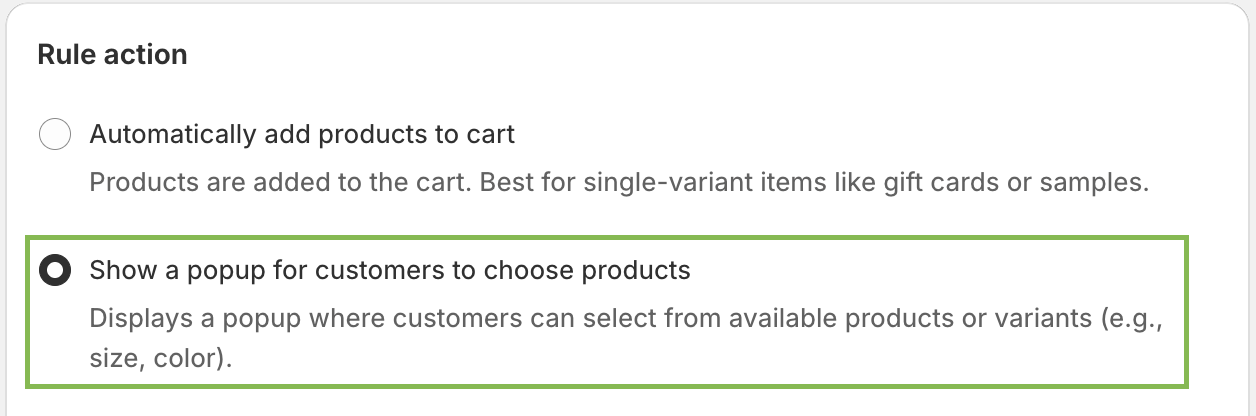
In the rule action section, select 'Show a popup for customers to choose products'.
Select the products you want to offer to the customer when the rule is triggered.

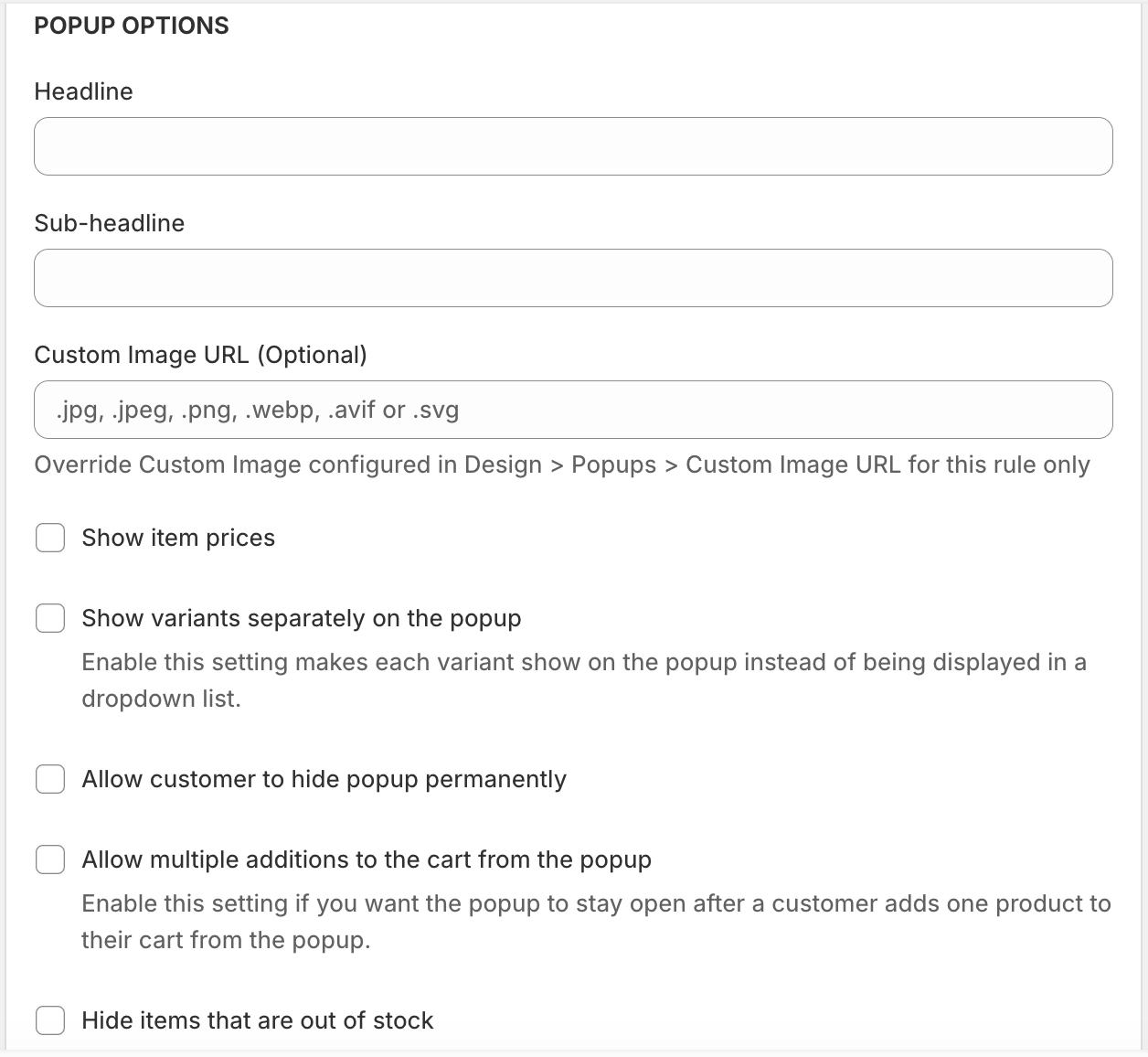
Configure the contents of the pop-up shown to the customer. Write an engaging headline and sub-headline to tempt your customer to buy more.
You can show or hide the prices of the offered products.
Step 3: Apply additional settings for the rule
Apply other settings for the rule, such as active schedules, magic links, etc.